
If you’ve ever dropped out of a Microsoft Teams meeting at exactly the wrong moment, you’re in good company. A misplaced click while trying to share your screen or access controls has caused more than a few awkward “sorry, I’m back” re-entries.
A recent usability update aims to reduce exactly that problem — making it harder to accidentally leave a call in Microsoft Teams.
What’s Changed in Microsoft Teams?
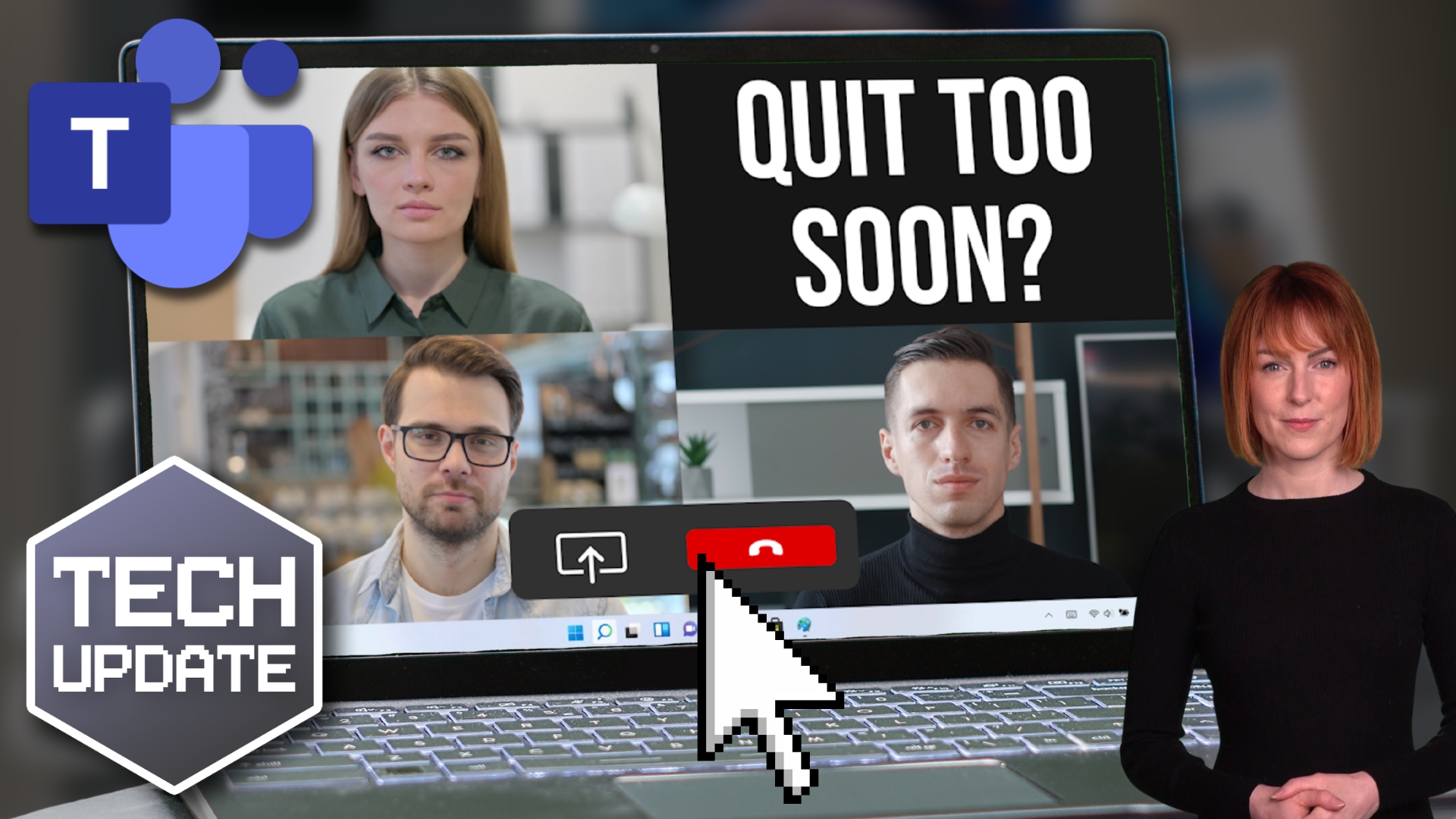
Microsoft Teams has moved the “Leave” (Quit) option away from the main meeting control bar and into a less prominent location, accessible via the system tray area on Windows.
The intention is simple. Reduce accidental clicks during fast-paced meetings where users are switching between controls like mute, camera, chat, and screen sharing.
In practical terms:
- The Leave button is no longer as easy to misclick during meetings
- It’s separated from the core “high-frequency” controls
- Desktop users should see the change automatically with no IT intervention required
This is part of a wider set of continuous UI refinements in Microsoft products aimed at reducing friction in everyday workflows.
Why This Matters (Even Though It’s a Small Change)
At first glance, this feels like a minor interface tweak. But in real-world usage, it addresses a surprisingly common frustration.
In fast-moving meetings, especially when:
- presenting content
- juggling multiple screens
- responding in chat while speaking
- or switching between apps
…it’s easy to misclick.
And when that misclick is “Leave meeting”, the result is immediate disruption:
- You disappear mid-sentence
- The meeting flow pauses or stutters
- You rejoin awkwardly and try to catch up
Removing that risk improves meeting continuity and reduces avoidable interruptions — particularly in customer calls, internal stand-ups, and training sessions.
You Can Still Add a Safety Net: Leave Confirmation
Even with the UI improvement, accidental exits are still possible. If you want an extra layer of protection, Teams includes a useful setting:
Enable “Confirm before leaving meeting”
You can find it here:
- Settings → General → “Confirm before leaving meeting”
This introduces a simple prompt before you exit a call, helping prevent accidental departures.
Another Useful Update: Hiding the Meeting Toolbar
Alongside the Leave button adjustment, Microsoft is also rolling out improvements that allow users to hide the meeting control bar during calls.
This helps with:
- More screen space during presentations
- Reduced visual distraction
- A cleaner focus on shared content
It’s especially useful when:
- delivering webinars
- presenting slides
- or working through detailed documents in real time
The Bigger Picture: Small Changes, Better Meetings
Individually, these updates don’t transform Teams overnight. But collectively, they reflect a clear direction: reducing friction in everyday digital collaboration.
Across organisations, the impact is subtle but real:
- fewer accidental interruptions
- smoother meeting flow
- less cognitive load during multitasking
- and more polished virtual interactions overall
For teams that rely on Microsoft Teams daily, these incremental improvements help remove the small irritations that add up over time.
Final Thought
You might still manage to click the wrong thing occasionally — technology hasn’t quite eliminated human error yet.
But with the Leave button now less exposed, and confirmation options available, disappearing mid-meeting should become a lot less common.
And if you do vanish mid-sentence… at least it won’t be quite as easy to blame Teams anymore.
If you’d like to learn about other small-but-mighty features that could help everyday work, get in touch.